3. The interface
Everything Overpaint does is reachable from the sidebar of the 3D Viewport (press N). Two tabs matter: OP Painter, where you work, and OP Settings, where the defaults live (chapter 21).
These are the main panels in OP Painter:
| Panel | What it is |
|---|---|
| Object Sets | which meshes are painted as one object, and the cutters — advanced, chapters 16.2 and 17 |
| Material Sets | which materials share one stack — advanced, chapter 16.1 |
| Paint View | the big preview square: what the sublayer you clicked actually holds |
| OP Painter | the main panel: material slots, the global dropdowns, the channel ribbon, the add buttons and the stack |
The Mesh Maps Baker appears above OP Painter (chapter 4).
The two set panels sit at the top, but on a fresh file you can collapse both and never open them — a single material paints perfectly well without either (chapter 16 explains why). Start with Paint View and OP Painter, those are the daily stuff.
(You can reorder panels by dragging the dotted grip on their header.)
3.1 Paint View — the preview square
Paint View shows the content of the sublayer you last clicked, and nothing else. It is the quickest way to be sure of what you are editing before you paint into it.
| What is selected | What the square shows |
|---|---|
| a Paint or Image sublayer | the image itself, large, with its datablock name underneath — that row is a picker, so you can swap in another image from the file ("No image loaded." until one is set) |
| a Color or Fill sublayer | a big colour swatch; click it for the colour wheel, and the RGB values are printed under it |
| a Procedural sublayer | the generator picker, so you can swap Dirt for Rust right there |
| anything else, or nothing | the Overpaint logo, the version and the author |
Which image an Image sublayer shows depends on the channel chosen in the first dropdown of the main panel below — one Image sublayer can carry a different image per channel.
If Paint View shows a message instead, follow it: save the .blend first, select a mesh with a material, or add your first layer. Return to Paint Object brings you back if you selected a projection helper.
3.2 OP Painter — the main panel
Top to bottom, exactly as the panel draws itself.
The material slot list. Blender's own slot list for the active object. The active slot is the material Overpaint edits, so this is how you move between materials on a multi-material mesh.
The four shortcut buttons. These are the first row in OP Painter. They open a split of the current 3D View; click the lit button again to close that split.
| Button | What it opens |
|---|---|
| Library | An Asset Browser on the left, focused on the **Overpaint ** asset library. Use it to find generators, filters, materials and shaders, then drag an asset onto the stack where appropriate. |
| Inspector | A Properties editor on the right showing Overpaint's Node Inspector and Shader Inspector together. |
| Brush | A Properties editor on the right showing Material Paint and the Blender texture-paint brush controls. It is useful in Texture Paint mode; outside that mode the Material Paint panel explains the required mode. |
| Export | A Properties editor on the right showing OP Export. It is the same exporter as the Properties editor's Scene tab, placed beside the viewport for quick access. |
Inspector, Brush and Export share one right-hand split: clicking another one switches the split, and clicking the active one closes it. Opening or closing these views is a UI action and does NOT add an undo step.
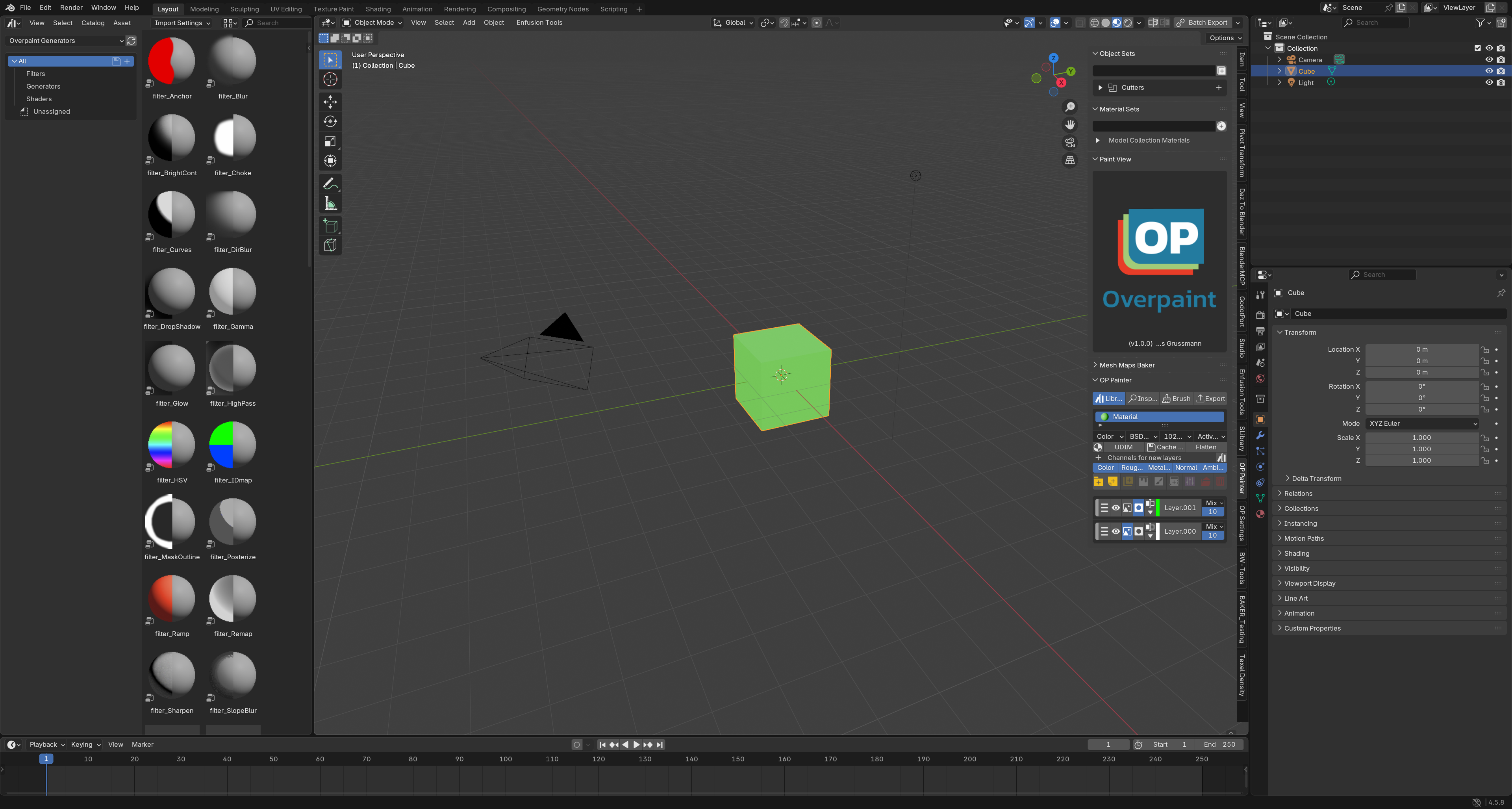 Figure 3-1. The main OP Painter panel in the repository's Blender 4.5 test scene.
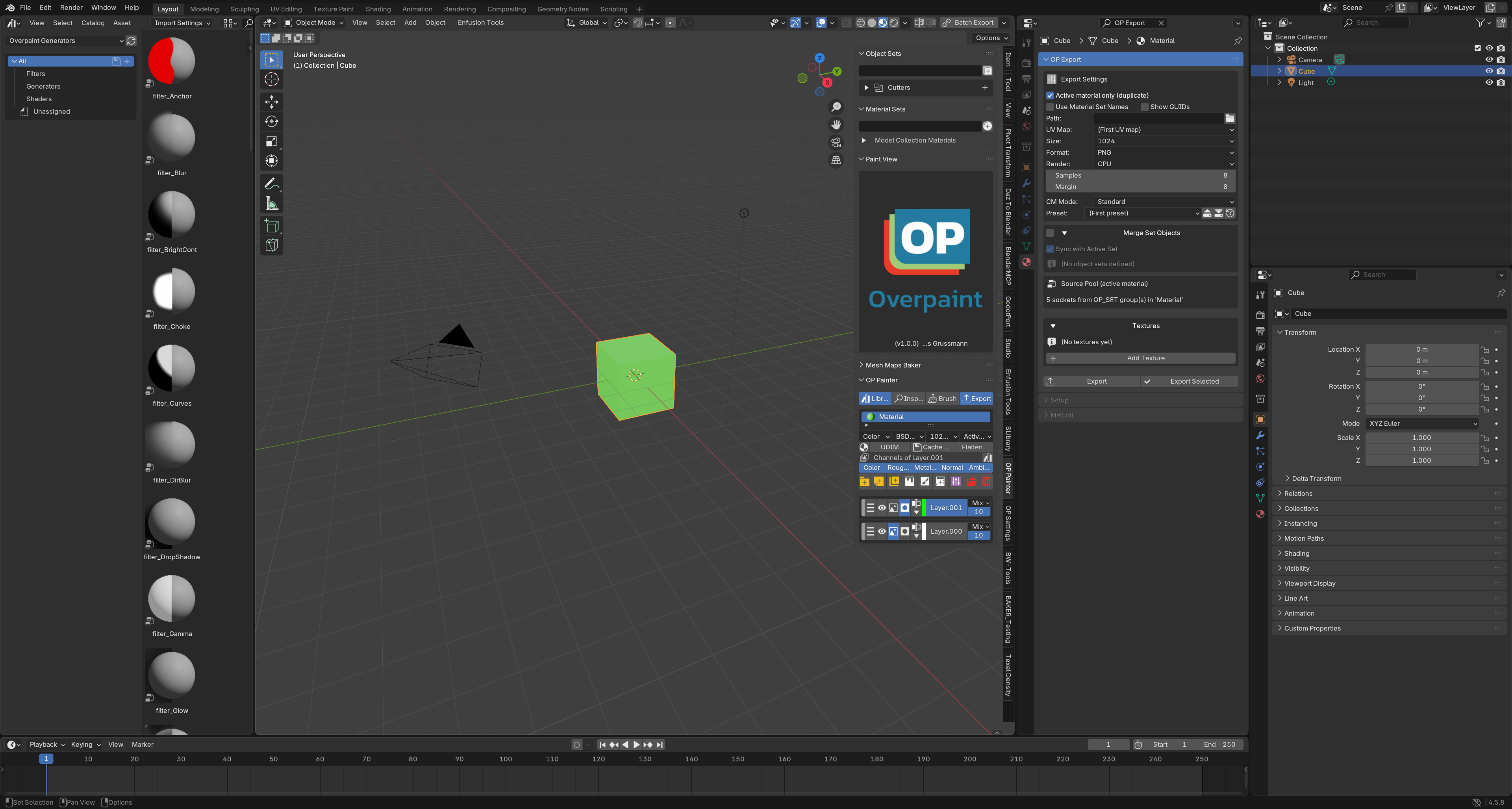 Figure 3-2. Library opens the Overpaint Generators Asset Browser on the left.
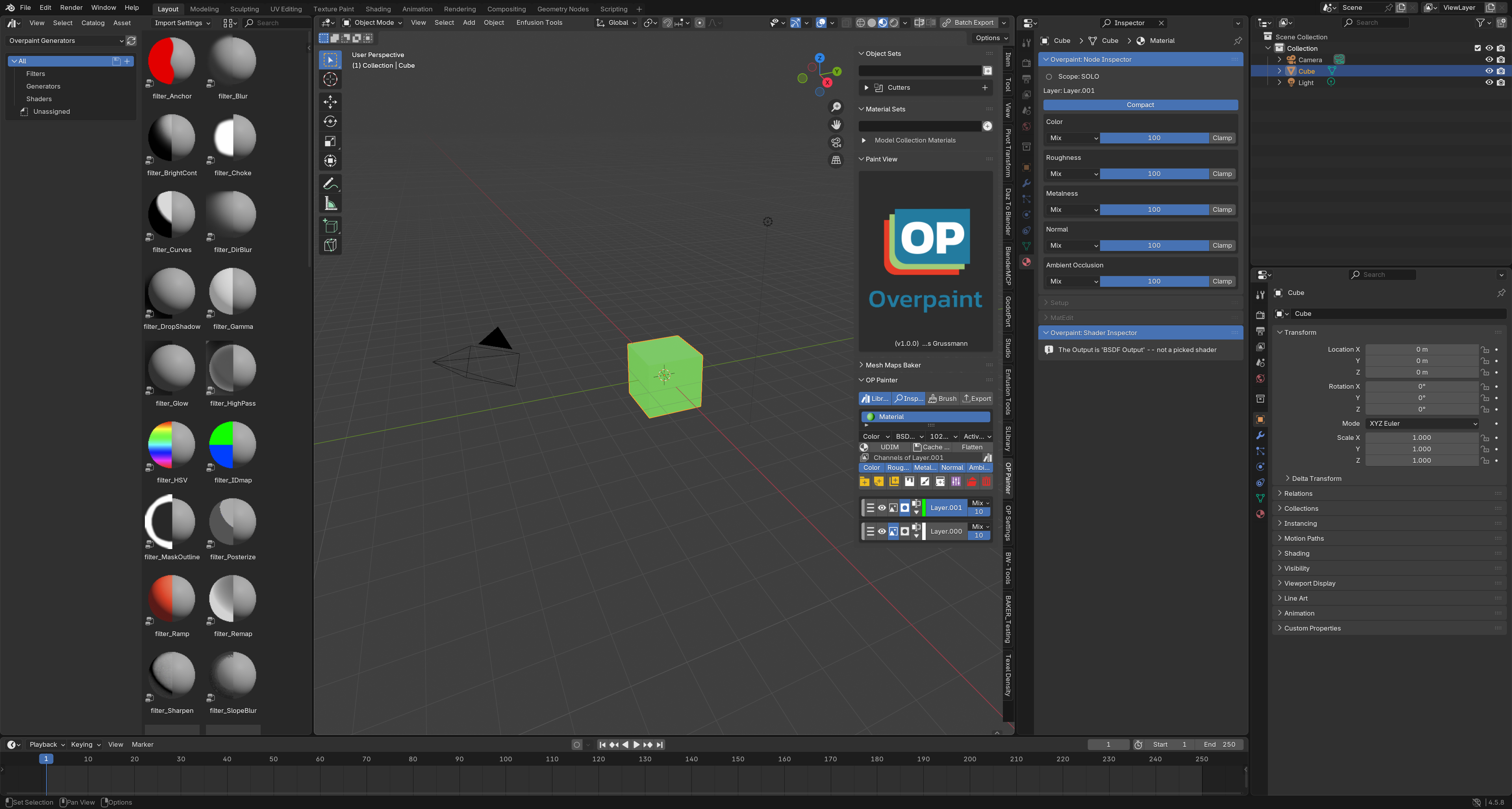 Figure 3-3. Inspector opens the Node Inspector and Shader Inspector on the right.
The four dropdowns.
| Dropdown | What it does |
|---|---|
| Color (first) | which channel the panel shows controls for: the blend mode and opacity on every row, and the image Paint View previews. A view switch — it changes nothing in the result |
| BSDF Output | the output route: what the set's node group feeds to the material output (chapter 14) |
| 1024 × 1024 | the size new paint canvases are made at. Changing it resamples the existing canvases to the new size and relinks them; a ↺ button appears beside it while a backup of the previous size exists |
| Active UV | the UV map new Paint and Image sublayers use |
UDIM · Cache All · Flatten · Create Setup Asset. UDIM switches the material to tiled painting (chapter 11). Flatten flattens the selected layer or folder into images, using the settings in OP Settings ▸ Flatten settings (chapter 21). The asset button packages the current stack as a setup asset you can share or reuse.
Cache All. Pre-bakes the stack into GPU textures (chapter 20). Once caching is on, the single button becomes the pair Re-cache All / Uncache All.
Two warnings can appear above the dropdowns. A red Output '…' is not installed on this machine row means the file was saved with a custom output route (chapter 14) that this install does not have; a GPU filters OFFLINE — CPU fallback banner means the pixel filters cannot reach the GPU and run slowly on the CPU. In Per Material object-set mode an Object Selection block, collapsed by default, sits at the very top of the panel (chapter 16.2).
The channel ribbon. Picks which channels a sublayer touches. It updates the selected sublayer straight away, or sets the channels for the next one you add. Show more channels in OP Settings (chapter 6), add your own in chapter 18.
The add buttons. One row of icons, and the middle three change with the bus of whatever is selected — that swap is the panel's whole trick:
| Button | When it is there |
|---|---|
| Add Folder | always |
| Add Layer | always |
| Duplicate selection | always |
| Fill · Paint · Procedural | when the selected layer or folder is on the mask bus |
| Color · Image · Material | when it is on the image bus |
| Filters | with a layer or folder selected — opens the OP Filters shelf as a popover |
| Unparent to root | always |
| Remove selection | always |
If you are looking for Color and the row offers Fill instead, the selected item is on the mask bus: switch it with the two small bus buttons on its row, or select a different item. With nothing selected at all the row shows the mask trio.
The stack. Click a name to select, drag the grip to move stuff, use the eye to mute it. The image / mask icons switch the item's bus (and which sublayers you see). The pencil renames, the chevron expands, X removes.
Blend mode and opacity work on the channel picked in the first dropdown. A filter shows its main setting on the row, so you can adjust it without opening the inspector. Release on a flattened item brings the editable stack back.
For the rest open Inspector: the Node Inspector holds the selected sublayer's controls, the Shader Inspector holds the output shader's controls.
3.3 Viewport header
Overpaint adds a few buttons to the 3D Viewport header, next to Blender's own:
- Material Paint / Disable Paint — in Texture Paint mode, and only while an Image or Color sublayer with at least two channel images is selected: the multi-channel brush on and off (chapter 9).
- 2D view — builds the flattened UV view (icon only, shown in every mode). The button turns red when a second viewport exists but its helpers are gone: press it to rebuild them.
- Swap 2D / 3D — swaps the two viewports.
- X — removes the 2D view's helpers and leaves local view; the split itself stays, drag the area border to close it. It appears only while the helpers exist.
- Start Buttons / Stop Buttons — in the viewport's editor menus, Texture Paint mode: two on-screen Brush / Erase buttons that flip the brush between Mix and Erase Alpha; the arrow keys nudge them (chapter 10.3).