9. Material Paint
Material Paint is the multi-channel brush. One stroke can paint red into Color, white into Roughness and black into Metalness (your own values for every carried channel).
- Select an Image or Color sublayer with at least two channel images.
- Enable Material Paint from the viewport header or the Brush panel.
- Set the channel brush values and paint. Color uses Blender's brush colour, the other channels have their own values in the panel.
The first dropdown reads Material while the brush targets all carried channels. Pick a named channel there to return to single-channel editing.
Undo matters here. Material Paint keeps up to 30 strokes, shared across sublayers. Ctrl+Z / Ctrl+Shift+Z undo and redo those first, then fall through to Blender's undo. Disabling Material Paint clears its stroke history.
The stroke commits when you release the mouse or pen. All Blender brush blend modes are supported at commit (the live stroke preview uses Mix). Preview Base When Idle shows the untouched base between strokes.
Changing to an unsuitable selection or leaving Texture Paint switches Material Paint off. On non-Windows platforms, release detection is not supported yet, so disable Material Paint to commit the stroke.
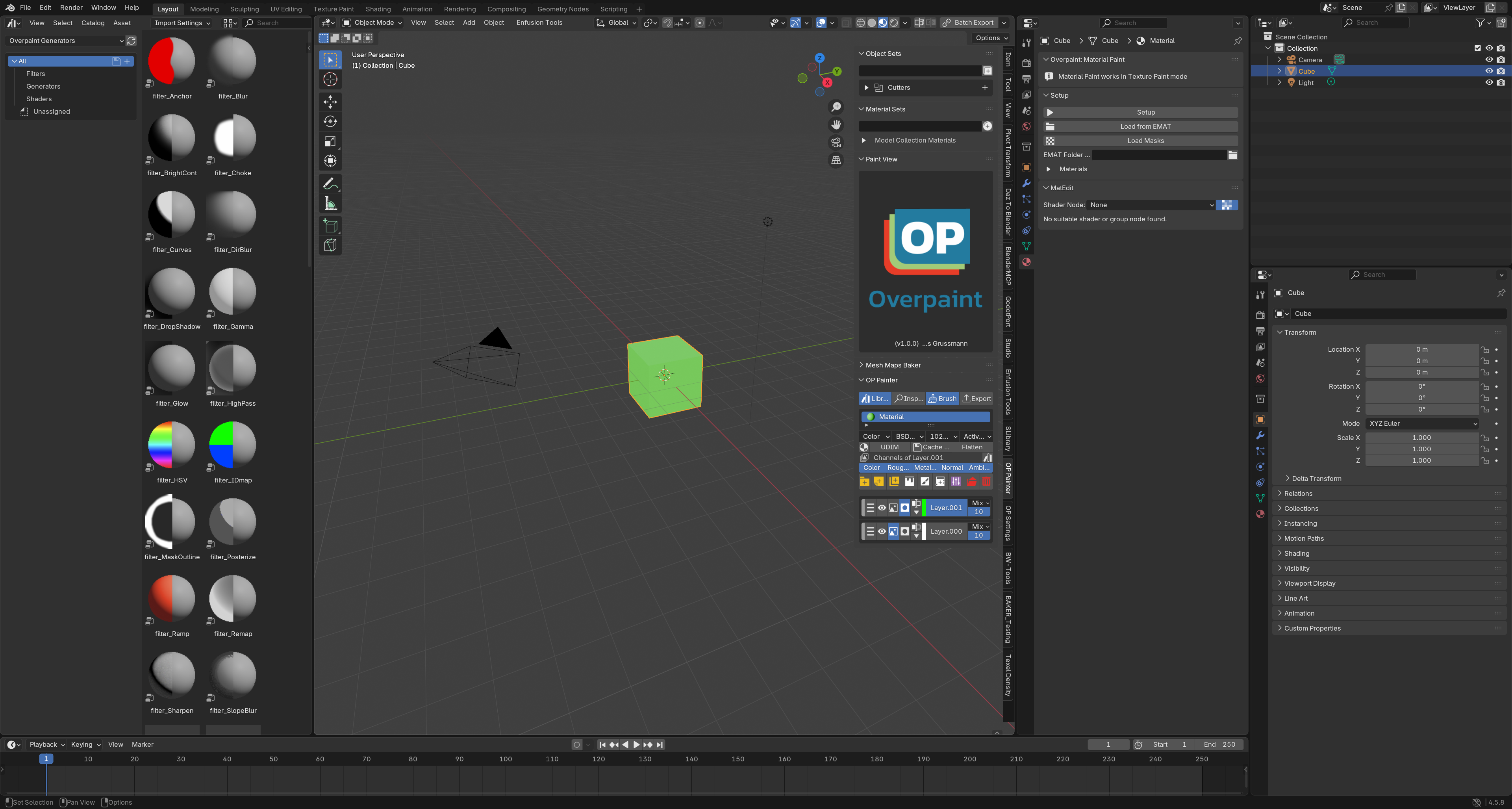 Figure 9-1. Brush opens Material Paint on the right. The panel requires Texture Paint mode and a suitable paint setup before its per-channel controls become active.