13. Export
The exporter turns the ship into texture files, packed the way your engine wants them. Open Export at the top of OP Painter (or Properties ▸ Scene ▸ OP Export).
- Set Path, UV Map, Size and Format.
- Apply an engine preset, or use Add Texture to build your own list.
- Check the texture sources and names, then press Export (or Export Selected for ticked entries).
Presets. Overpaint includes Unreal Engine (ORM), Unity (Metallic Smoothness) and glTF PBR (Metal Roughness). Applying one replaces the texture list. Save keeps your own setup; Load Last Session restores the last one. Presets keep texture sources and channel transforms, the global export settings stay separate.
Channel packing. Expand a texture's RGBA controls to choose each component. An ORM texture is Ambient Occlusion in R, Roughness in G, Metalness in B. For a cut-out colour texture, use Color in RGB and Opacity in A (Straight alpha). Visible channels and registered folder outputs are available as sources.
Colour management. Value maps export raw. For colour textures choose the CM Mode your workflow needs; turn off Global CM on an entry to override it. The CS field is a colour-space tag, it does not replace the encoding chosen by CM Mode.
Several objects together. Enable Merge Set Objects, then tick the sets and parts to bake into one texture set. Sync with Active Set follows your selection. In Per Material mode, export parts one material at a time (chapter 16).
Export saves dirty images first and overwrites existing output files. UDIM writes one file per tile. The completion message tells you how many files were written and where.
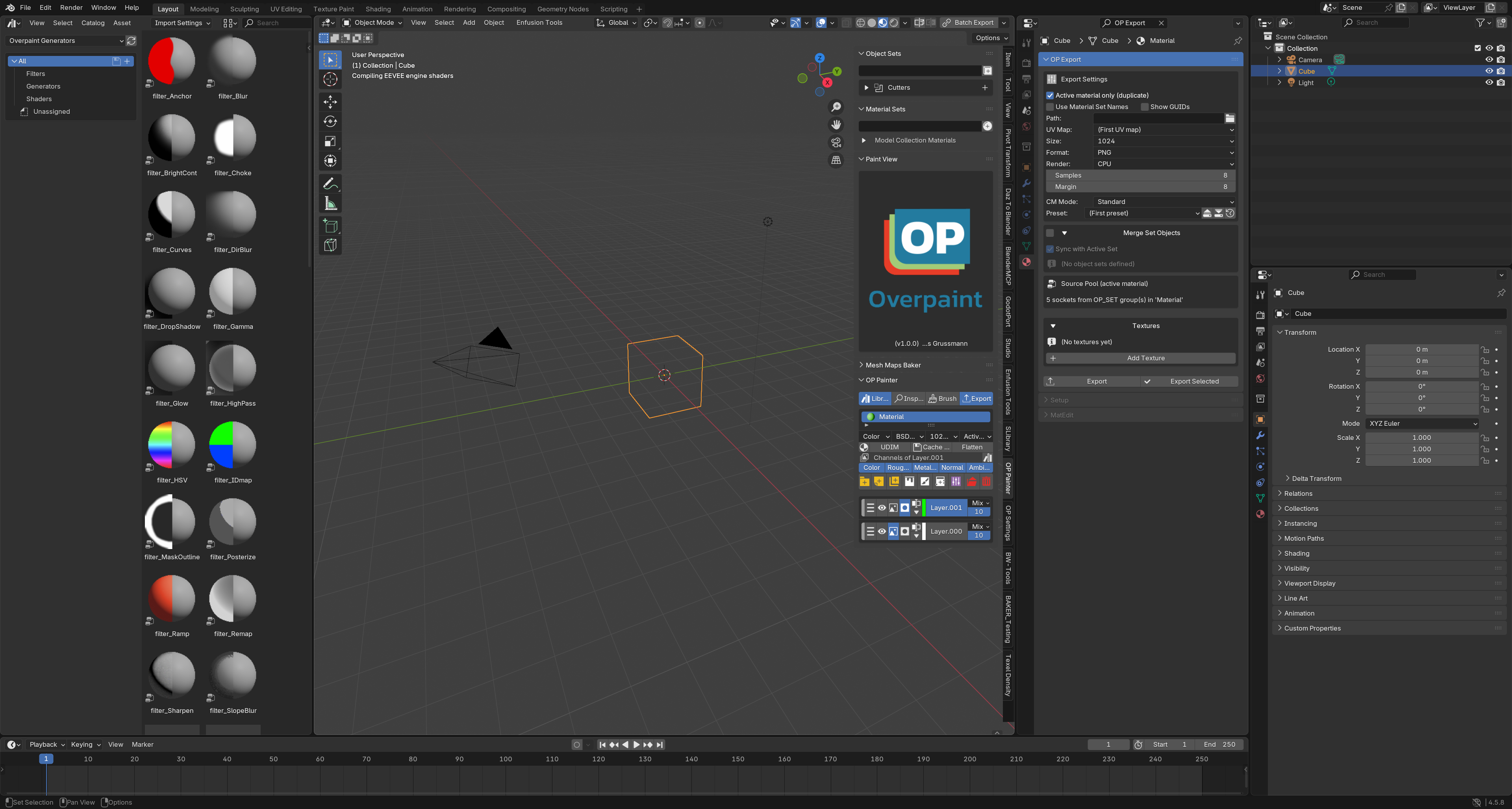 Figure 13-1. OP Export. Use Add Texture or apply a preset to start.